Sunday, March 27, 2016

Advanced YouTube video search tips & Tricks


At present YouTube is the no 1 video sharing site. YouTube has over one billion of users and each day people spend hundreds of millions of hours here. We search YouTube videos for music video, video search, game review, tips & tricks, tutorials and for many other reasons. But do we know how to search video on YouTube effectively? Most of the time we type our keywords in the YouTube search bar and hit enter. If we use some YouTube search tip and tricks then the search results can be more efficient. Today I going to share some advance YouTube search tips with you.
advanced youtube videos search tips tricks

ADVANCED BEST YOUTUBE SEARCH GUIDE: TIPS & TRICKS


YouTube is a partner of Google so you’ll see some similarity in some search tricks of google search and YouTube search. In some cases some searching methods are same but in most cases they are different. You can also learn advanced google search tips and tricks. It is worth learning and you’ll never regret learning this. Now we’ll see how to filter YouTube video search results to find what we exactly need.

  • YouTube video search tips using default filter: 


Sometime we forget to use the YouTube default filter. This filter helps us to be specific on YouTube search results.

advanced youtube videos search tips

Categories of default filters are Upload date, Type, Duration, Features and Sort by. Each category has some sub-categories. If you want a video in 4k format with less than 4 minute duration you can set the filter here. So you will get all results according to your choice.

  • Search only in YouTube videos by Google Search Tricks:


You can use google search tricks to find videos only in YouTube site. You can tell google only to search video inside YouTube.
Example: [Iron Maiden site:youtube.com]

advanced youtube videos search tips and tricks

Google will show you video search results only on YouTube. This way you can search any content in any specific website. This is a very helpful tips for students and researchers to find useful content/resource in a website.

  • Use Comma (,) for specific YouTube search:


You can manually set filters otherwise you can use comma in a specific format to search YouTube videos with filter.

advanced youtube videos search tricks

Example: If you search video of Slash’s HD music longer than 20 minutes then you should type these keywords in the following way “Slash, HD, Long”. The filter will search videos those are in HD mode and longer than 30 minutes. And if you use Short instead of Long in the filter it will shows videos lesser than 4 minutes. This is actually a smart way of not using the default filter manually.

***Remove any filter by clicking on it:
If you use filter in the YouTube search bar and want to delete any of the filters then you can remove any filter by clicking on it. It’s so simple.


  • Use (+) operator (Boolean Operators) to add additional phrase:

(+)Boolean Operator allows you to add additional keywords for your search results.
Use this format “Slash +myles kennedy”

advanced youtube videos searching tips and tricks

By using this YouTube search trick you will get results having both Slash and Myles Kennedy phrases.

  • Use hyphen (-) (Boolean Operators)  to exclude phrases from YouTube search results:


We can use hyphen (-) to exclude some phrases or keywords in the YouTube search bar.
Example: [rammstein -"live"]

advanced youtube videos search guide and tips


This search will exclude “live” word from the result. So if we want Rammstein video songs without live performances we can search this way. This results will show music videos, interview, and audio songs excluding all results having “live” keyword. This method of YouTube video search is very useful.
*** There is an alternative of this method.
Example: [rammstein, -live]


advanced guide to search youtube videos effectively


You can use this method instead of the previous one. Both will show same video search results.

  • Use [intitle:"search term"] to force specific keyword search for YouTube videos:


We can use this trick also in google search. This will forcibly exclude other keywords from search result.
Example: [Scorpions:"always somewhere"]

advanced youtube videos search guide

This search will provide search results having “always somewhere” keywords in it.

  • Specify start time in YouTube videos:


Suppose you want to share a video with someone, or you want to show a motivational YouTube video in presentation for your employees and you want a specific portion of this video to be watched then you can use this trick. You can set the start time manually by yourself.

Example YouTube video link: https://www.youtube.com/watch?v=eqXauwC-L1c

Add start time after the link: https://www.youtube.com/watch?v=eqXauwC-L1c#t=01m08s

This will allow you to start the video right from 1:05 seconds.
To embed a portion of any YouTube video you can do the same thing. Add this start time in the embedded code like:
Embedded code:

advanced youtube search tips and tricks
Also Read: How to block any website in any browser

Whether you are a marketer or an individual love using YouTube a lot or using it for a marketing purpose then understanding how YouTube search really work is essential. Here is my best search tips for YouTube search. You can use this simple advanced YouTube search tips and commands to boost up your YouTube presence. YouTube is very potential if you know how to search on YouTube videos efficiently or how to search YouTube like a pro. If you know any additional YouTube search tricks then share with us.

Read More »

Tuesday, March 8, 2016

How to block/prevent access to windows Registry Editor

We all are concerned about our computer‘s security. We don’t want any unauthorized access, data leakage, unwanted programs or anyone to change the way our computer runs. So what to do? Windows operating system itself has some solutions. We don’t need any 3rd party software. We can enforce strict security measures by blocking USB ports, blocking windows command prompt, restrict access to registry editor by Group Policy editor gpedit, by Windows Registry Editor or by other registry editing tools.

Restrict disable or Prevent access to Windows Registry Editor

What is windows Registry Editor?

Windows registry editor is a registry editing tool provided by windows operating system to the advanced computer users. You can view and change the settings in system registry the way you want to run your computer. You can install, uninstall new programs, block any website , create user profile add and remove any hardware and many more.

Restrict, disable or Prevent access to Windows Registry Editor:

We will show you three different ways to disable or restrict access to Registry Editor. You must have to have administrative privilege to change the settings.


Prevent access to Registry Editing Tools using Windows Group Policy Editor/GPEDIT:

  • Open Windows Run by pressing (Windows key +R)
  • Type gpedit.msc in the box and hit ENTER
  • Go to User Configuration > Administrative Templates > System
  • Look at the right pane and search for “Prevent Access To Registry Editing Tools”

Prevent access to Windows Registry Editor
  • Double click on it and set as Enable. Click on Apply > Ok.
disable or Prevent access to Windows Registry Editor


If anyone open the registry editor he/she will face “registry editing has been disabled by your administrator” error message.

Enable access to Registry Editing tools using Windows Group Policy Editor/GPEDIT:

*** This method restrict all users including you from registry editing. If you want to enable access or regain access to registry editing tools then revisit to User Configuration > Administrative Templates > System and set the value of “Prevent Access to Registry Editing Tools” as “Not Configured”.


Restrict or Prevent access to Registry Editor using Windows Registry Editor/REGEDIT:

  • Open Windows Run by pressing (Windows key +R)
  • Type “regedit” in the box and hit ENTER
  • Navigate to HKEY_CURRENT_USER > SOFTWARE > Microsoft > Windows > CurrentVersion > Policies > System
  • Look at the right pane and search for “DisableRegistryTools”
  • Double click on it and change the value to 1
  • Click on Apply > Ok

Enable access to Registry Editing tools using Registry Editor:


*** If you want to enable access or regain access then again navigate to HKEY_CURRENT_USER > SOFTWARE > Microsoft > Windows > CurrentVersion > Policies > System and change the value of DisableRegistryTools with “0”. Set other users type as Standard User so they can’t be able to write in registry and only you have the right of editing in registry editor.


Restrict, disable or Prevent access to Registry Editor using Windows Command Prompt/CMD:


  • Open Windows Run by pressing (Windows key +R)
  • Type “cmd” and press ENTER
  • In the box paste the quoted value “REG add  HKCU\Software\Microsoft\Windows\CurrentVersion\Policies\System /v DisableRegistryTools /t REG_DWORD /d 1 /f”
  • This will disable user’s access to windows registry editor.

Also Read: Useful run commands we should know.

Enable access to Registry Editing tools using Windows Command Prompt:


*** To enable access to registry editor again paste the quoted value “REG add HKCU\Software\Microsoft\Windows\CurrentVersion\Policies\System /v DisableRegistryTools /t REG_DWORD /d 0 /f” in the command prompt.

Note: When trying to enable registry editor again you may receive:

ERROR: Registry editing has been disabled by your administrator and prompt.

To solve this problem type “net user administrator /active:yes” in the cmd and press Enter in order to enable default administrator account.

Restrict or Prevent access to Windows Registry Editor

Remember, this is very important to a network administrator of a large company or to you if you have a computer having too many user accounts then you need to block/disable/restrict/prevent access to windows Registry Editor to avoid unauthorized access to windows registry or prevent your computer from unwanted programs such as virus. You can use registry editing tools like by Group Policy gpedit/gpo/registry editing tools/windows command prompt, any method you like. These methods will work with windows 10/8 or windows 7.

Also Read: 16 Best advanced google search tips and tricks.

Read More »

Saturday, March 5, 2016

How to Enable/Disable lock/Unlock USB Ports


You may have personal documents in your computer which you wouldn’t like to share via USB flash drive from USB port. So what to do? You can enable USB protection by simply lock USB storage access or disable USB ports of all USB hub to prevent data leakage by USB drive.  This is very important for a software company, IT firm or any private business who don't want to share their private documents or want to restrict users from taking any data from the work station. So you can better block/disable USB access to mitigate your business’s security risks and protect your sensitive files. On the other hand I will also show you how to enable or unblock USB drive, the only thing you need is administrative privilege to do the job. You can also block windows command prompt to ensure more security.

Related: How to block a website in any browser without any software?


enable disable usb ports

How to Enable/Disable/lock/unlock USB ports or drives


I will show you six easy methods of enabling/ disabling USB access of a computer without any USB lock software. Windows operating system itself has the solution. If you’re the administrator then use any of the following methods to Enable/Disable USB drive of your computer. If you found the USB access disabled then I suggest you to try every method because you’re not sure which way the USB port access was disabled.

1. Enable or Disable USB ports via Device Manager.
2. Enable/Disable USB ports by changing registry values in windows registry editor.
3. Enable or Disable USB ports by installing or uninstalling USB mass storage drive.
4. Enable/Disable USB ports through BIOS set up.
5. Enable or Disable USB ports by changing permissions to usbstor.inf and usbstor.pnf files.
6. Lock or Unlock USB ports of front panel by connecting or disconnecting USB header.

Enable or Disable USB ports via Device Manager:

  • Press Windows key+R
  • In the “Run” type devmgmt.msc 
  • This will open Device Manager of the computer. Now look for Universal Serial Bus Controller and double click on it.
  • In the sub-menu panel check any port whether it is disabled by the admin. 

block unblock usb ports by Device Manager

  • Enable all the ports.

*** You can disable USB ports by disabling all the ports in the Universal Serial Bus Controller.

Enable/Disable USB ports by windows registry editor:

This is also an easy option. You can block or unblock USB by changing the registry values.

  • Press Windows key+R
  • In the “Run” type> regedit
  • Navigate to “HKEY_LOCAL_MACHINE> SYSTEM> CurrentControlSet> Services> USBSTOR”
  • In the right side pane double click on START and change its value to 3 to enable USB ports.

enable disable usb drives by registry editior


  • Click Apply> OK

*** To disable USB Storage change START value to 4 in the right pane of USBSTOR. Click apply then OK. You will be able to use pen drive now.

Lock or Unlock USB ports by installing or uninstalling USB mass storage drive:

When authorities are really cautious about security of the important documents and they can enforce this method. Admin can uninstall mass storage drive.

  • Insert any USB drive and let windows find the right compatible USB driver for your USB disk.
  • Windows will check for appropriate driver. Update the USB driver and you will be able to use USB ports then.
  • You have to have admin access to apply this method.

*** To uninstall USB mass storage drive go to device manager and select the USB driver from Universal Serial Bus Controller. Right click on it and click uninstall.

Enable/Disable USB ports through BIOS set up:

To disable USB port in bios settings follow those simple steps:

  • Enter BIOS edit menu by pressing DEL when computer starts at the very first page.
  • Look for the option “enable or disable the on-board USB ports”
  • Turn of all USB and Legacy USB Support to disable USB port. 
  • After changing the value press F10.
  • Save and Enter.
  • Computer will then restart now check the USB ports to be sure that they have been properly disabled.

*** To turn on or enable USB ports via BIOS simply enable all USB and Legacy USB supports.

Enable or Disable USB by changing permissions to usbstor.inf and usbstor.pnf:

  • Open windows explorer
  • Type “%windir%\inf” and hit ENTER
  • Now you’re in the C:\Windows\INF folder. Look for usbstor.inf and usbstor.pnf files.

enable unlock usb ports by changing permission


  • You have to change the permission in both files.
  • Right click on the file and select Properties. Then Go for securities tab. 
  • Select the user or users group you want to control. Like Users or Administrators.
  • To change permissions click on EDIT.

unblock block usb ports by changing permission


  • To block any user or user group DENY all attributes and to unblock any groups or users click on Full control, or you can manually check the boxes.

***If you deny all the value to any user then he/she will not be able to install any USB driver in your computer and if you allow full control to any user he/she will be able to install USB driver.

Disconnect Desktop computer’s front USB port by disconnecting USB header:

This is a very old method. This will only work for front USB panel.

  • In the computer casing USB ports were connected by USB headers.
  • Simply unplug the USB header to disable/block front USB panel
***You can enable it again by connecting the USB header.


USB storage's like pen drive, flash drive or USB memory sticks can deliver malware infections that can lead to data leakage, and bring auto play virus or any other unwanted programs.  Sometime disabling USB ports is a must. To a large company customer data, company’s financial information, employee data, business plan, source code, marketing plan and intellectual property is very much important. So network administrators can block USB storage anytime to ensure company’s security by enforcing parental control over USB access.

Also Read: advanced google search tips and tricks

Also Read: Top 10 Most Popular Torrent Sites

Read More »

Wednesday, March 2, 2016

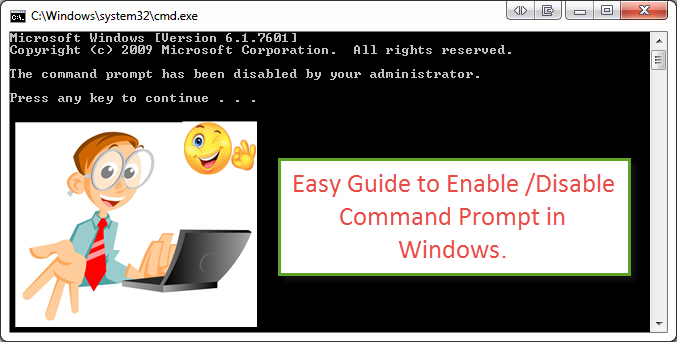
How to Disable/Enable windows Command Prompt


If you’re a network administrator of a company, in a IT company or in school or if you have different user accounts in your computer and you’re the administrator then you may need to block windows command prompt or disable command prompt in windows for a secure internet access. This is a very easy thing to do. You don’t need any third party software to do it. After blocking command prompt if you try to type any command in command prompt you will get this message “The command prompt has been disabled by your administrator”. I will share some easy tips with you. Only you need is admin access of the computer to edit in windows command prompt.

Related: How to block any website in any browser without any software.

Here, the main reason behind blocking command prompt is security. I am suggesting you to also learn How to Enable/Disable/lock/Unlock USB Ports and How to block/prevent access to windows Registry Editor to prevent data leakage and unauthorized file transfer.


How to enable disable windows command prompt

How to Enable /Disable Command Prompt in Windows:

You can disable/block command prompt of windows in two different ways.

  1. Enable or Disable “cmd” using GPO or Group Policy Object.
  2. Enable or Disable “cmd” using Windows Registry Editor.

Follow the following easy steps carefully to Enable /Disable Command Prompt in Windows.

Disable/block windows Command Prompt using Group Policy Object (GPO): 

To try this method you must have the administrative rights of the computer and have to have access to the Microsoft Windows Group Policy editor known as Group Policy Object (GPO). Don’t worry if you’re the administrator you already have it.
Follow those simple steps:

  • Press “windows key+R” to open run
  • Type “gpedit.msc” and press Enter to open the Local Group Policy Editor 

enable disable windows command prompt


  • Navigate to “User Configuration >Administrative Templates >System”
  • Look at the panel at the right side saying “Prevent access to the command prompt”

enable disable windows command prompt as admin


  • Double click on it to set the change in the policy.
  • By default it is set as “Not Configured” >Set it to “Enabled” and click Apply then OK.

enable disable windows command prompt as an administrator

The command prompt has been disabled by your administrator.

Enable/Unblock windows command prompt in Windows by GPO

To unblock command prompt in Windows-
Navigate to “User Configuration>Administrative Templates>System”. In the right panel look for “Prevent access to the command prompt” and set the value to “Not Configured” and press Apply then OK.

Disable/Block Windows Command Prompt using Registry Editor:

Follow those simple steps:

  • Press “windows key+R” to open run
  • Type “regedit” and open Registry Editor. 
  • Navigate to HKEY_CURRENT_USER >Software >Policies >Microsoft >Windows >System
  • Sometime you may not find Windows or System Key then you have to create them.
  • In the “System” look at the right pane and double click “DisableCMD” and change its value to 0.

enable disable windows command prompt cmd by admin


  • If “DisableCMD” is not present then you have to create a new DWORD value, rename it to DisableCMD and set the value to 2.
  • Its okay now.

Now if anyone including administrator wants to try to edit in windows Command prompt, he will see the following message,
“The command prompt has been disabled by your administrator.”

Enable/Unblock windows command prompt in Windows by Registry Editor:

If you want to reverse your choice and enable windows command prompt by Registry Editor simply delete the “DisableCMD DWORD” or set its value to 0.

Shortcut Method of enabling windows command prompt:

If you don’t want to take the hassle of editing in registry mode, there is a very simple solution for you. This method works with Windows 8.1, Windows 8, Windows 7, Windows Vista and Windows XP and may be with windows 10 also, you can better try. If it doesn’t work with windows 10
Follow those simple steps:

  • Type “windows key+R” to open run
  • Simply copy the following command and hit ENTER.
  • REG add HKCU\Software\Policies\Microsoft\Windows\System /v DisableCMD /t REG_DWORD /d 0 /f
  • Your windows command prompt is now enabled. If it is still disabled then restart your computer.

You will be able to open cmd as admin now.  This simple way you’ll be able to Disable/Enable windows Command Prompt. If you find any difficulties doing so then make a comment. I will surely reply.

Related: Useful run commands we should know.
Also Read: 16 best advanced google search tips and tricks.

Read More »

Friday, February 12, 2016

16 Best advanced google search tips and tricks

Google search engine provides millions of search results each day. We use it for different reasons like education purpose, official purpose or for entertainment. But do our search results are effective enough? We all already know about google voice search, google image search, google video search and other easy searching methods in the google search bar. Most of the time we just use the simple method for google search because most of us aren't technology geek. There are some following advanced google search tips that will change the way you search. This google search guide is simple and worth learning. May be some of you guys know some google search tricks as well. Now it's time to learn some more, so that you can use google search engine more effectively. You can also learn some keyboard tricks to do it wisely.


how to search on google effectively

How to search on Google Effectively:


1. Use Quotes for specific google search:

When we normally search for google then google provides some guesswork for each search. If you use quotes then it tells google to be more specific about the phrases. For example you want to search for cheap golf stick then google will search around this phrase and you will find huge search results(34,00,00) but if you quote the search like “cheap golf sticks” then the result will be more specific. I found only twelve results but with exact same phrase and exact order I have searched for. Look at the picture closely.

Quotes for specific google search tricks

(**Use Alt+0147 and Alt+0148 in windows keyboard for right and left double quotation**)

2 .Exclude words by using a hyphen:

Sometimes you may search a word that is obscure in meaning like Impala. You may notice that there are a mix of google suggestions. Some of the results are showing Impala animals and some are showing Impala cars. If you don't want any results with car then tell the search engine to avoid suggestions without cars. To do that follow the below example:

* Impala -cars
This will remove any google search suggestions that have the word "car" in it.

3. Search Google with No Country Redirection:

You may notice that when you search anything on google then google uses your regional google site like google.com.au or google.com.uk. But you may want to search on google with No Country Redirection by the following method.

Go for “www.google.com/ncr”
Then search anything you need in the search bar. You can avoid local marketer's attraction on your search results by adding "ncr" at the end.


4. Use additional google search tabs:

There are several google search tabs in the top of every search result like Web Search, Image Search, Video Search, Google People Search, News Search and more options. Most of us already use these tabs but if you don't then I recommend you to do that. With these search tabs you can define the type of search you need to. If you need just image then go to image option or if you need videos then click on the video tab.

additional google search tabs google search tips


5.  Let google search on a specific website:

Sometimes you need to search for a specific website. You need a content or article and you need to limit search suggestions only to a single website.

Example:  how to block a site:trickytechtunes.blogspot.com (keywords site:website)

search google on a specific website


This search will let you find if there any content about “How to block a website” but only on www.trickytechtunes.blogspot.com. All similar contents from other websites will be disappeared. If you want anything on a particular website then use this trick. If you want to find a movie in a specific torrent website then you can use this trick.

Also Read: Top 10 Most Popular Torrent Websites


6. Use asterisk wildcard for advanced google search:

Sometimes you need to find the middle part of a name or you are trying to remember a song by lyrics because you forgot the whole phrase then you can use this trick.
*For middle initial of a person you can search > “Adam * Smith”
*You can search for a song > "Flying with the guys * Crying like last night"

asterisk wildcard for advanced google search


 If you search for all forms of an expression then you can search this way.
“* is thicker than oil”

asterisk wildcard for google search


Google will try to suggest you results that mention something is beautiful than flower. Something was used instead of other words like life,men or she.

7. Use “Define:" to find the definition of words:

It's simple. If you want a definition of a word by dictionary then just search this way.
 Example “DEFINE: love.”

8. Find similar websites by google search:

Let's think you have a favorite gaming website and if you be able to find some similar sites then you will be happy to explore more. You may read all the contents of the website and you need a new similar one. This tips is very useful and I'm sure if you already know the trick then you used it many times before. I'm going to share this tips if you missed that one.

Suppose you are a big fan of IGN gaming site and you love to know some similar websites like IGN. Follow the syntax below:
“related:ign.com”(without quotation mark)

Find similar websites by google search


In the google search you will not find IGN, You will find some other gaming sites instead. you can use this powerful tips for educational search, blog sites or anything you might interested in.

9. Search google for a specific file type:

Let's say you are looking for some books related to photography tips then this method is going to be the most important tips for you. May be you are searching for a specific book, journal or anything related and you want it in pdf format or as document file then just use this method.
*Your keywords here* filetype:pdf

Search google for a specific file type


Replace your words in the *your keywords here* filed and search for any file type like pdf, xlsx or docx. This is very helpful for researchers, students and for presentation purpose.

10. Use google search bar for simple math solution:

If you're a student then you may need it frequently. You can also solve your daily simple math with simple google search. You don't have to pick a calculator or you don't have to open calculator window from your application from all programs. You can solve the math in the google search bar.

Try this on in the google search bar 100*8(13+12)-12

Use google search bar for simple math


 You will find the result in the google search result page. You will also find a calculator and use it for other mathematical purpose.

11. This OR that:

You may notice here I capitalized the word “OR”. This simple trick is really very useful. Normally when you search anything on google then google will suggest you all the terms and related keywords under its niche. Like if you search for milk or water then you'll find all the results associated with these words. But if you search this way “milk OR water” then you'll find more specific suggestions having only milk or only water related websites.

12. Comparing foods nutrition value:

If you want to find nutrition values of two different foods then you should use this trick. Try this one: Banana vs mango

use google search for comparing foods nutrition value

13. Sports score update & Schedules:

My favorite football team is FC Barcelona, yours may be different one. Anyway search for your favorite team like “FC Barcelona” in the google, then google will use google sports and show you if any match in progress or updated score or schedule.

14. Find sunset and sunrise time:

If you have to know the sunset time or sunrise time of your local region or any other region then you may use this trick. Just google in this way “sunset Budapest” or “sunrise Budapest” and get the answer.

15. Search keywords in body, title or url of a page:

By this trick you can search for a word in title, url or in a page body. Suppose you search for a word and you want this word should be in every suggested title of the google search result. Then search this way, “intitle: google search”, and if you want these words in the url then search for “inurl: google search”.
“intitle: google search” To search the word in title.
“inurl: google search” To search the word in url.
“intext: google search” To search the word in body of the page.

16. Google Image Search:

If you are using Chrome as your web browser then you have the option to google image search by image.  Simply right click on any image and click search google for image. You will find any kind of similar images in the result. You can use this method for finding duplicate image or other websites that have the same image file.
 
Google Image Search tips and tricks

Google chrome also has the default option for search google by image. In default google search page at the top you will find “images”. Click on that and you'll find a camera option in the google search bar. You can either paste an image url or upload an image and then hit the “Search By Image" button.

Also read: Top 20 Chrome plugins /Extensions


Google search engine is the best search engine among search engines. You can use this advanced google search tips for your daily life use.  You can also use google custom search or google safe search if you want to be more specific or if you want to limit your google search result. Google image search, google people search and google voice search is also useful. If you use Internet Explorer as your browser then you can use google toolbar to get the most of google.


Read More »

Saturday, February 6, 2016

How to block a website

How to block a website on chrome, Firefox or any web browser?


So, you want to know how to block a website for any web browser. The reasons may vary. Sometime we need to enforce parental control over internet in our computer or we don't want anybody or any user to surf some websites from a specific computer. May be you are a proud father and don't want your kid to browse some websites or you have different user accounts in a computer where you are an administrator and you want to control some websites access to users. I'm going to share a easy website block tips with you. You don't need any website blocker, website blocker software or any third party website blocker plugin to do that. Windows operating system provides this solution to the administrator of any computer. This way you can block youtube or unblock youtube, facebook or any other social sites.


Also Read: How to Disable/Enable windows Command Prompt
Also Read: How to Enable/Disable lock/Unlock USB Ports

How to block a website:

Follow those steps carefully to block a website in all browser>

Open Windows Explorer and go to C:\Windows\system32\drivers\etc OR open "RUN" and command "C:\Windows\system32\drivers\etc"(without quotation mark). If your windows located in other drive then substitute the correct drive letter instead of "C". 

block-a-website-in-all-web-browser

  • Double click "host" and open it with notepad. If the program automatically opens with another program then at first open Notepad and the navigate to host by File>Open>C:\Windows\system32\drivers\etc>select file type to all>select host.

  • Navigate to the last line "127.0.0.1 localhost" or "::1 localhost" whichever line to the lowest.
How-to-block-a-website-in-all-web-browser

  •  Create a new line by pressing "Enter"
  • At first type "127.0.0.1" then press space-bar single time and type the website you want to block. If you want to mobile domain for the same website then mention it also. See the image below.


block-a-website-on-your-computer
  •  Now press Ctrl+S or save the changes in host file. 
  • If a prompt comes and saying"You don't have permission to save in this location. Contact the administrator to obtain permission. Would you like to save in the Documents folder instead". To solve this issue, do the following.
  1. Right click on the host file and choose properties>Security>and see all the boxes are marked in for your current user account. This will allow you as an administrator.
block any website for chrome or any other browser

 
 Then Apply>okay


You can better take a look at this video:


How to unblock blocked websites: 


** This way you can block the internet access of some websites temporarily. If you want to unblock any website or want to open blocked websites then go to host file. You will find the list of blocked websites. Simply delete any site to unblock website and click Save. This way you'll be able to block any website without any software.
 All done. If you find any difficulty doing this, make a comment. I will surely reply.

Also Read: Windows 10 activation problem error code: 0xC004F074
Windows 10 activation problem error code : 0xC004F074 - See more at: http://trickytechtunes.blogspot.com/2016/01/windows-10-activation-error-0xC004F074-solved.html#sthash.8x6Q5gVB.dpuf
Read More »

Sunday, January 10, 2016

Windows 10 activation problem [SOLVED] error code : 0xC004F074


windows 10 error code 0xC004F74

Windows 10 activation problem error code : 0xC004F074


If you had a KMS activated version of Windows 8, Windows 8.1 or Windows 7 before and you upgraded to Windows 10 then you may face the problem. You may have installed Windows 10 few months ago but after the recent up-gradation of January 2016, you may face this error code 0xC004F074 with this message"Windows is unable to reach your company’s activation service." Don't worry. There are some solutions to this problem. Hope you will find it useful.

Also Read: (Useful run commands we should know)


Windows is unable to reach your company’s activation service:

Windows-is-unable-to-reach-your-company’s-activation-service


I had installed Windows 10 few months ago after the immediate release of Windows 10 and I faced this error message while my Windows 10 computer upgraded automatically on Jan 06 2016. I got exactly the same message. You can better take a look...

Windows is unable to reach your company’s activation service. Please connect to your corporate network. If you are connected and continue to see the error, contact your system administrator. You can also click on error detail to find the exact error. Error code: 0xC004F074


There are two methods to fix this problem as far as I know.

Method One:

This method will work if you already have an activation key or KMSpico Key. You need to uninstall the existing key before applying the new one. Open command prompt in admin mode  and execute: (slmgr.vbs /dlv) without bracket before uninstalling the existing key.
You will find following description, note the description:

Description: Windows(R) Operating System, VOLUME_KMS_WS12_R2 channel

activation-keys-in-software-license-version


Next: Apply:  slmgr.vbs /upk to uninstall the existing KMS key:

uninstall-previous-windows-10-activation-key


With the old key uninstalled, apply the following:

slmgr.vbs /ipk <NewKMSProductKey>

Install-new-key-for-windows-activation


Now go to PC Settings >Update and Security > Activation.

And you will find your windows 10 activated.


activated-windows-10-pro

Check the VIDEO for Windows 10 activation problem error code : 0xC004F074


You May Also Like: How to Enable or Disable USB Ports


Method Two:

This one is the easiest method I think. Probably you are familiar with torrent websites. If so then look for any torrent website( Top 10 Popular torrent sites) and find any updated KMSpico software.

You will need a torrent client installed in your Desktop computer or laptop. If you don't have any then you may download utorrent, Vuze Bittorrent Client or any other torrent client. Install and run the software and download the torrent file.

Steps:
  • Turn off Windows Defender for a while.
  • Download the KMSpico software.
  • Unzip the RAR file.
  • Look for "KMSpico Install" folder
  • Run the .exe file.
  • Complete the installation process.
  • Open KMSpico from start menu.
  • Hit the red "Push" Button.
  • Activation process will start shortly and complete within 15 seconds.
  • All done.
Windows 10 is activated now.
You can now Turn on Windows Defender.
Now go to Settings >Update and Security > Activation.

And you will find your windows 10 activated.

newly-activated-windows-10-by-KMSpico


If you find any difficulties then make a comment.


Your comment is highly appreciated.
Thanks.
Read More »

Friday, October 16, 2015

Top 20 useful Chrome plugins from chrome web store.


Google Chrome & plugins:


Top Useful Chrome plugins from chrome web store


Google Chrome browser is the most popular web browser of all time.  About 50% of the total internet users including mobile and tab users use chrome as their best choice. Google chrome has some special features that make it different. I think "one account, All of Google" is the best motto. This service not only helps general users but also helps web developers a lot. Besides that google has a huge chrome web store. Google chrome store has a lot of Google chrome plugins that can change your browsing experience. If you are a google chrome user then you may be known to google chrome plugins. Chrome plugins can help you a lot, these extensions help you to organize your chrome browser, give you security and many more services that will ease your browsing experience.


Related: Top 10 popular torrent websites of 2015


Chrome Web Store:  

 Enlisting the best chrome extensions is not so easy because everybody has different choice and purpose.  Here you will find a list of updated chrome addons or extensions.  In Chrome store there is also a search bar where you can search for your preferred extension.

Depending on purposes of use I am going to divide those plugins into some categories:

Extensions for Privacy, Internet Security and Blocking Ads**


Extensions for Privacy Internet Security and Blocking Ads

Adblock Plus:  


This the best Chrome extension to block ads and tracking. Ad block Plus helps to clean webpages, removes ads from everywhere, even from sidebar. This plugin can block various kinds of ads, such as animated ads, flash ads, Facebook ads etc. You may find some websites will not work with adblock. That means you must disable adblock plus to view the content of the page. You can manually control adblock plus and let adds show only for the certain page to view its content.

ZenMate Security, Privacy & Unblock VPN:


 It is one of the best chrome plugins related to privacy VPN networking. With Zenmate you can unblock the web by hiding your IP address. It is a very popular vpn service plugin for chrome users. You can enable protection and can get easy security and privacy online while accessing web content. Sometime our ISP blocks some websites for us, with the help of Zenmate we can visit those websites  easily.

Unlimited Free VPN - Hola:


  It is one of the most popular vpn service plugin for Chrome. Sometime some country block some websites for different reasons, in university or office you may face some block websites that you are unable to visit, or your ISP can block some websites or you. In this case Hola can help you. It can unblock all websites for you keeping your identity secret.

DotVPN: 


Dotvpn is also a popular VPN service.  Zenmate, Hola and DotVPN have quite same features. Dotvpn claims that it is the most powerful VPN service for Chrome. DonVPN claims it has the best identity protection system and foiling censorship in all countries.

HTTPS Everywhere: 


We all know that HTTPS is a sign of trust and security. "HTTPS Everywhere" plugin automatically switches thousands of sites from insecure "http" to secure "https". It will protect you against many forms of surveillance, fraud and account hijacking. It gives a secure connection and privacy while you are browsing internet.

**Chrome Extensions for helping SEO and web developing:**


Chrome Extensions for helping SEO and web developing

Firebug: 


A must-have extension for many web developers and SEO developers. Inspection of  element is more easy now. You can find source info in a webpage by right clicking and viewing the source info without any extension, but this extension will give you more.  Firebug allows us to edit and debug HTML, CSS and JavaScript live on any page. It also helps analyzing network performance and activity.

Open SEO Stats:


 One of the best SEO tools. By this plugin you can analyze any web page. You can find Alexa and compete rank of any website without visiting alexa and compete web pages. You can see Traffic Stats, Site Info, Page info, site Meta Data, page speed, h1,h2 tags, Meta description, site ranking more easily.

Goo.gl URL Shortener:


 Goo.gl url shortener is an extension which allows you to shorten the current website URL with the Google URL Shortener service. It will be useful for those who share links quite frequently.  It offers a feature to use keyboard shortcut to create a short URL and to share it through various websites such as Facebook, Twitter, Google+, Friendster, Gmail, Google Bookmarks, LinkedIn, MySpace etc.

Window Resizer: 


It allows us to Resize browser window to emulate various screen resolutions. This tool is very useful for web designers and developers.  This plugin let developers test their layouts on different customizable browser resolutions.

ColorZilla:


 Advanced Eyedropper, Color Picker, Gradient Generator and other colorful goodies in one plugin. It is mainly a web designer tool. It helps designers to get color hex code more easily. By ColorZilla one can gets a color reading from any place from his browser almost like Photoshop, quickly adjust this color and paste it into another program for further use. It has also an Ultimate CSS Gradient Generator.

**Chrome Extensions for organizing google chrome: **


Chrome Extensions for organizing google chrome

DF YouTube: 


It is a very useful Chrome extension to avoid distraction. It means while you are in YouTube for educational purpose or listening music in a free mode or you just want to stay away from YouTube suggested videos that’s YouTube wants you to see for promotional purpose or for advertisement.  It removes the grid of recommended videos and sidebar for you.  It can also hide comments and disable playlists site wide.

Awesome Screenshot: 


Awesome Screenshot App is an annotation tool for your screenshot and picture. You can capture any area of windows then drag and drop the picture in the app to annotate. You have to have upgraded version of chrome to install this plugin.  This will work for Chrome version 36 and later.

Evernote Web Clipper:


 It is one of the favorite apps of article lovers and bloggers. It is very simple and easy to use. You can clip any web pages when you browse and keep all them in Evernote. You can save your ideas, experiences, online articles from blogs and other websites and can access them later from anywhere and from any device. You can also create task list and to do list and search anything inside Evenote using keyword and text search.

Clearly: 


If you want to visit a website without distracting ads and graphics, want to read the content clean then Clearly is for you. This plugin strips away ads and other graphic such as flash objects, makes blog posts and articles clear and allows you to read websites like a clean word document. You can save the content to Evernote to read anywhere.

 Momentum: 


Every time we open a new tab in chrome we see a default web page. And if you get bored seeing this Momentum can helps you to create an innovative one; you can make it awesome and boost your productivity. It has also a to do list and a personal dashboard featuring weather. Every time you open a new tab, you see an inspiring reminder of tasks you have to do.

**Chrome Extensions for integration with other Google Services ** 


Chrome plugins for integration with other Google Services


Search by Image (by Google):


Most of the time we search google by text. But google also has an awesome feature of searching web with images. This app let you search the web for similar images. You can right click on any image and make a search. It will reveal you many information’s like how many websites use this image and of course you will find some related images.

Earth View from Google Earth:

 When you open a new tab this plugin displays a beautiful Satellite image from Google Earth. You can also download any image and set it as desktop of mobile wallpaper.

Google Dictionary:

  This plugin really helps a lot. You can easily view definitions as you browse the web. Just Double-click any word to view its definition in a small pop-up bubble. You can also view the complete definition of any word or phrase using the toolbar dictionary. You can also store a history of words you have searched.

Google Calendar (by Google):

 It is  easy to keep track of life's important events all in one place with the help of google calendar. You can organize your schedule more easily. This plugin also have a share feature. You can share your calendar with your family, friends, and colleagues. They can view your schedules and it is easy to know when you will be free or busy. You can sync this app with your mobile and edit from anywhere. You can also use a read-only version of your calendar and can access to calendar when you are not in online.

Google Translate:

 You can visit translate.google.com to translate any page to any language. But this plugin can do it more easily. You can translate instantly as you browse the web. You can Highlight or right-click on a section of text and click on Translate icon next to it to translate it to your language or preferred language. It is very useful and easy to use.

All these Chrome plugins are free and you can download and install them directly from chrome web store. So start using plugins according to your need. Thanks a lot. Have a great Day.

Your Comment Is Highly Appreciated.


Thanks.


Read More »

Photography & Tech Update:

Hello, I am Mohibullah Mamun. A photographer and a Blogger. Here to share my photography ideas, tips, tricks and update tech news with you. (Read More)

Let's Get Connected:
| Facebook | Google Plus | Twitter |