Wednesday, March 2, 2016

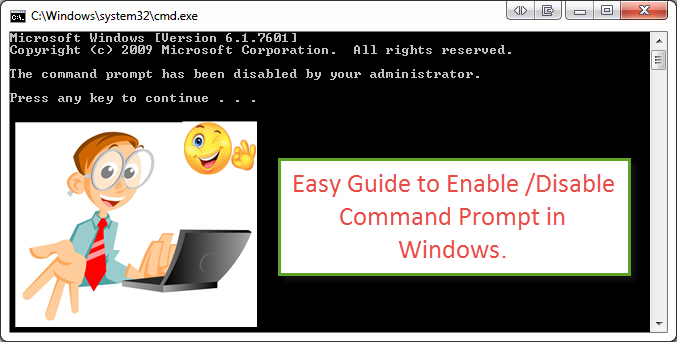
How to Disable/Enable windows Command Prompt


If you’re a network administrator of a company, in a IT company or in school or if you have different user accounts in your computer and you’re the administrator then you may need to block windows command prompt or disable command prompt in windows for a secure internet access. This is a very easy thing to do. You don’t need any third party software to do it. After blocking command prompt if you try to type any command in command prompt you will get this message “The command prompt has been disabled by your administrator”. I will share some easy tips with you. Only you need is admin access of the computer to edit in windows command prompt.

Related: How to block any website in any browser without any software.

Here, the main reason behind blocking command prompt is security. I am suggesting you to also learn How to Enable/Disable/lock/Unlock USB Ports and How to block/prevent access to windows Registry Editor to prevent data leakage and unauthorized file transfer.


How to enable disable windows command prompt

How to Enable /Disable Command Prompt in Windows:

You can disable/block command prompt of windows in two different ways.

  1. Enable or Disable “cmd” using GPO or Group Policy Object.
  2. Enable or Disable “cmd” using Windows Registry Editor.

Follow the following easy steps carefully to Enable /Disable Command Prompt in Windows.

Disable/block windows Command Prompt using Group Policy Object (GPO): 

To try this method you must have the administrative rights of the computer and have to have access to the Microsoft Windows Group Policy editor known as Group Policy Object (GPO). Don’t worry if you’re the administrator you already have it.
Follow those simple steps:

  • Press “windows key+R” to open run
  • Type “gpedit.msc” and press Enter to open the Local Group Policy Editor 

enable disable windows command prompt


  • Navigate to “User Configuration >Administrative Templates >System”
  • Look at the panel at the right side saying “Prevent access to the command prompt”

enable disable windows command prompt as admin


  • Double click on it to set the change in the policy.
  • By default it is set as “Not Configured” >Set it to “Enabled” and click Apply then OK.

enable disable windows command prompt as an administrator

The command prompt has been disabled by your administrator.

Enable/Unblock windows command prompt in Windows by GPO

To unblock command prompt in Windows-
Navigate to “User Configuration>Administrative Templates>System”. In the right panel look for “Prevent access to the command prompt” and set the value to “Not Configured” and press Apply then OK.

Disable/Block Windows Command Prompt using Registry Editor:

Follow those simple steps:

  • Press “windows key+R” to open run
  • Type “regedit” and open Registry Editor. 
  • Navigate to HKEY_CURRENT_USER >Software >Policies >Microsoft >Windows >System
  • Sometime you may not find Windows or System Key then you have to create them.
  • In the “System” look at the right pane and double click “DisableCMD” and change its value to 0.

enable disable windows command prompt cmd by admin


  • If “DisableCMD” is not present then you have to create a new DWORD value, rename it to DisableCMD and set the value to 2.
  • Its okay now.

Now if anyone including administrator wants to try to edit in windows Command prompt, he will see the following message,
“The command prompt has been disabled by your administrator.”

Enable/Unblock windows command prompt in Windows by Registry Editor:

If you want to reverse your choice and enable windows command prompt by Registry Editor simply delete the “DisableCMD DWORD” or set its value to 0.

Shortcut Method of enabling windows command prompt:

If you don’t want to take the hassle of editing in registry mode, there is a very simple solution for you. This method works with Windows 8.1, Windows 8, Windows 7, Windows Vista and Windows XP and may be with windows 10 also, you can better try. If it doesn’t work with windows 10
Follow those simple steps:

  • Type “windows key+R” to open run
  • Simply copy the following command and hit ENTER.
  • REG add HKCU\Software\Policies\Microsoft\Windows\System /v DisableCMD /t REG_DWORD /d 0 /f
  • Your windows command prompt is now enabled. If it is still disabled then restart your computer.

You will be able to open cmd as admin now.  This simple way you’ll be able to Disable/Enable windows Command Prompt. If you find any difficulties doing so then make a comment. I will surely reply.

Related: Useful run commands we should know.
Also Read: 16 best advanced google search tips and tricks.

Read More »

Friday, February 19, 2016

Canon EOS 600D/Rebel T3i Review


The 18 megapixel Canon 600D/canon rebel t3i with a fully articulated display is one of the cheapest and top class entry level DSLR camera among Canon cameras. In North America it is called as EOS Rebel T3i and in Japan it is known as EOS Kiss X5. Canon EOS 600D supersedes the Canon EOS 550D/Rebel t2i and comes with a 1040k dots multi angle LCD display and a user friendly control menu. We have tested 600D with Canon EF-S 55-250mm f/4-5.6 IS and Canon EF 50mm f/1.8 II. The result is simply awesome for an entry level budget camera.
Canon 600D rebel t3i review body front

Key Features of Canon 600D:

This lightweight Canon camera has a very user friendly interface and offers a beautiful LCD screen which is very helpful for low and high angle photography. Canon EOS 600D is a very popular camera to all over the world. This camera was first released in 2011 and now in 2016 we found that the Canon 600D is still very popular to Canon lovers.

Some key features of Canon EOS 600D:

*Fully articulated 1040k dots LCD screen.  *18 Megapixel CMOS sensor.    *ISO level 100-12,800
*Scene Intelligent Auto (Full Auto Mode).  * Inbuilt Wireless flash control   *Basic+ Mode
*Full HD 1080P video recording at 30fps.   *Digital Zoom in video recording (3–10×)

Canon 600D rebel t3i review body front with flips out

Full specification of Canon EOS 600D:

Canon 600D Specs:
Detailed Specification of Canon 600D 
Camera NameCanon EOS 600D/ EOS Rebel T3i/ EOS Kiss X5
Released On7 February 2011 By Canon Inc.
Camera Body Type & WeightCompact SLR, 570 g (Including batteries)
Image Sensor Size22.3 x 14.9mm CMOS
Camera PixelsEffective Pixels 18.0 MP & Total Pixels 18.7 MP Approx.
Image Ratio 1:1, 4:3, 3:2, 16:9
Maximum Resolution5184 x 3456
Other Resolutions of  Canon 600D5184 x 2912, 4608 x 3456,3456 x 3456, 3456 x 2304, 3456 x 1944, 3072 x 2304, 2592 x 1728, 2592 x 1456, 2304 x 1728, 2304 x 2304, 1920 x 1280, 1920 x 1080, 1728 x 1728, 1696 x 1280, 1280 x 1280, 720 x 480, 720 x 400, 640 x 480, 480 x 48
SensorDIGIC 4
LENS Mount TypeCanon EF/EF-S Lens
Image ProcessorDIGIC 4
ISO SettingsLowest ISO 100, Highest 6400 (12,800 if boosted)
Image StabilizationNO
Presets of White Balance 6
AF System/Focus Points9-Poing Auto focus (One cross type)
Manual Focusing YES
Auto Focus Selection SystemAutomatic selection or manual selection of auto focus
AF Lock YES.
Digital ZoomYES (3-10x)
Screen size 3", Fully articulated
Screen Resolution1040K Dots
Touch Screen NO
Live View ModeYES
Screen TypeTFT Colored LCD
Magnification of ViewfinderYES, 0.85x Approx.
Shooting ModesCreative Auto Mode, Portrait Mode, Landscape Mode, Scene Intelligent Auto, Night Portrait, Movie Mode, Program AE, Close-up Mode, Sports Mode, Aperture priority AE, Manual Mode, No Flash Mode, Shutter priority AE,
Color space of 600DsRGB and RGB (Adobe)
Picture StyleAuto, Standard, Portrait, Landscape, Neutral, Faithful, Monochrome, User Defined (3 Changeable Presets)
Shutter SpeedMin 30 Sec, Max. 1/4000 Sec, Bulb Mode
Videography Resolutions1920 x 1080 (30, 25, 24 fps), 1280 x 720 (60, 50 fps), 640 x 480 (60, 50 fps)
Video FormatMPEG-4, H.264
Exposure Compensation +/-5 EV (at 1/3 EV and 1/2 EV )
Built in FlashYES, Range 13.00m, Up to 17mm focal length coverage
External FlashYES, Wireless multi flash support
Metering ModesMulti, Center-weighted, partial and Spot metering
Connectivity USB 2.0, HDMI mini, Wireless Eye-Fi connection
Remote ControlYES
Storage TypeSD/ SDHC/ SDXC
BatteryRechargeable Li-ion Battery LP-E8
Battery LifeApprox 400 ( with 50% flash), 440 (without flash)
Camera Menu LanguagesTotal 25 (English, German, French, Dutch, Danish, Portuguese, Finnish, Italian, Norwegian, Swedish, Spanish, Greek, Russian, Polish, Czech, Hungarian, Romanian, Ukrainian, Turkish, Arabic, Thai, Simplified Chinese, Traditional Chinese, Korean and Japanese)
Supplied with 600DPrinted Manual, Batteries, Charger, Software CD
Microphone & SpeakerMONO
GPSNO


Lenses for Canon EOS 600D:

Any EF/EF-S lenses will work with this gear. If you buy a camera package then you may have to buy Canon EF-S 18-55mm f/3.5-5.6 IS II or Canon EF-S 18-55mm f/3.5-5.6 IS STM known as kit lens. But my suggestion is if you want to be a professional photographer then you may skip these lenses and buy at least a Canon EF 50mm f/1.4 USM if your budget suits and if you are on a tight budget and wish to have a low budget lens then go for a Canon EF 50mm f/1.8 II instead.
Also read: Photography Tips (A guide to buy next lens)

Technical info/Ease of use: 

In appearance Canon 600D is almost same as EOS 550D. You can also call 600D as a slight upgrade version of Canon EOS 550D. Canon 600D is slightly larger than 550D. The new 600D has some creative filters and some different aspect ratios but the main identical difference between the two is the fully articulated flip out screen which is very useful for low and high angle photography.

Canon 600D rebel t3i review body top view

Camera body:

Canon 600D is slightly heavier than 550D and the build quality is almost same. 600D weights about 570g when the battery is inserted and the measurement is 13cm wide, 10cm long and about 8cm deep from the viewfinder to the front grip. The mode dial has a texture around its side so it feels easier to grip and turn it around. The video mode is at the last end so you have to turn the mode dial so many times to get it. ISO, power switch and display button is at the top of the body. The manual flash button is close to the lens mount point at the left side (for a right handed person).

Viewfinder and Hand-grip: 

Canon 600D comes with a penta-mirror optical viewfinder as 550D with 90% coverage and 0.85x magnification. The viewfinder of 600D is slightly narrow and mildly uncomfortable. Mildly uncomfortable because it is good for people with small hands but it is uncomfortable to people with larger hands.

Live view mode:

Canon Eos 600D offers a live view mode which is very useful for videography. At the top of the LCD screen there is a dedicated button for entering live view mode. In the live view mode this Canon camera delivers the full resolution of the screen with 100% coverage with a frame rate of 30fps. You can change the shutter speed, ISO and aperture settings within the live view mode. Canon also offers two different alignment grids in live view mode which I think is very useful for checking Rule of Thirds while shooting.

Interface and Controls:

The interface is user friendly like 550D. Canon 600D offers continuous fast smooth shooting at the speed of 3.7 fps and has a 9-point AF for sharp images. You can change the autofocus points manually to ensure correct focus for you. 600D has some creative filters so you’ll be able to add effects like Fish Eye, Soft Focus, Toy Camera, Grainy B&W and Miniature. The main LCD screen gives all the shooting information and the 1040k dots high resolution display looks very decent.

LCD Screen:

Canon 600D is the second camera with a full articulated LCD screen after Eos 60D. Some other Canon cameras like Canon EOS 70D, Canon Rebel T5i or Canon EOS 8000D have the flips-out option. This articulated screen with a 1040k dots is the biggest feature of the 600D over its predecessor and is very useful for videographers and very comfortable during low or high angle photography. It is quite impossible to shoot video from high angle without a flips out screen. The screen is fully articulated that’s why the screen is foldable. You can fold it back while not in use. This will also help to protect the LCD screen.

ISO settings and Flash:

Canon 600D offers an ISO range between 100 and 6400 (expendable to 12800 while boosted). The higher the ISO level the grainer the picture would be. 600D has a built in flash which pops-up above the lens mount. There is also a hotshoe at the top to mount external flashguns. Canon 600D also supports wireless flash control. You can either use internal flash or wireless flash from the flash menu settings area.

Battery and Connectivity:

Canon 600D is equipped with LP-E8 Lithium Ion battery same as its predecessor. Battery power is 1120mAh and the battery life is same as 550D. You can shot approximately 450 shots with 50% flash usage and about 550 shots without and flash usage. Live view mode takes more battery life so if you use live view mode with 50% flash usage then you’ll be able to shoot at best 200 times. There are four indication level for the battery life. Our recommendation is if you’re going out for a travel then take an additional battery with you. You’ll get standard TV and USB cables inside the box. No HDMI cable was supplied with the box. You can connect to any HDMI supported TV or computer with a standard model mini-jack HDMI cable.

Canon 600D Camera Modes:

Canon 600D offers 14 different shooting modes. They are:
Auto Depth of Field mode (A-DEP), Aperture Priority Mode (AV), Manual Mode, Shutter Priority Mode, Program Mode, Portrait mode, Landscape mode, Sports mode, Flash disabled mode, Night Scene mode, Close-up mode, scene intelligent auto mode, Creative Auto mode and video mode.
All the different modes have different advantages.

Canon 600D Image quality:

Canon EOS 600D / Rebel T3i produces outstanding quality images and offers two different image formats one is RAW (uncompressed format) and JPG. We recommend to shoot RAW for best result especially while you’re shooting high-ISO level. The image quality is decent in its price class. This Canon camera also provides good quality images during low light photography and bright sunny conditions.

Sample pictures of Canon 600D: 

We have tested Canon t3i with Canon EF-S 55-250mm f/4-5.6 IS and Canon EF 50mm f/1.8 II. The picture quality is awesome for an entry-level DSLR.

Canon 600D rebel t3i review sample picture


Canon 600D rebel t3i review sample image


Canon 600D rebel t3i review sample picture


Canon 600D rebel t3i review sample picture


Canon 600D rebel t3i review sample picture

Canon 600D Video quality: 

Canon Eos 600D produces excellent quality video. One of the main reasons behind its popularity is its video quality. 600D gives Full HD 1920x1080 video recording in 30fps (29.97 actual) and other resolution like 1280x720 or 640x480 pixels. 30fps is only available in NTSC video format and 25 or 24fps for PAL video system. This camera also has Digital zoom facility.

Pros: (Reasons to buy Canon 600D)

* Excellent image quality            * Excellent video quality          * Multi-angle LCD
*Full HD video recording            *Fast autofocus                         *HDMI output
*Wireless flash transmitter          *Great depth of field                 * Easy menu controls

Cons:

* Poor build quality              *Noisy, excess shutter rolling noise    *Small hand-grip
* Slow video autofocus        *Slow AF in live view.                        * Short battery life

Overall Performance of Canon 600D:

*Design: 7/10               *Features 8/10       * LCD/Viewfinder: 9/10    *Image quality: 8/10
*Autofocus: 8/10         *Metering: 8/10     *Dynamic Range: 8/10       * Performance 8/10
*Build Quality: 7/10    *Noise/Resolution: 9/10

Canon 600d owners manual PDF


Memory card buying tips:

No memory card will be supplied with the camera box. You have to buy your own. While buying a memory card our recommendation is not to buy a cheap worthless memory card. Look at the memory card class closely before you buy it. There are several memory card classes, like class 4 memory card, class 6, class 8 and class 10. Class 4 is the cheapest but slowest. Canon 600 supports SD, SDHC, and SDXC memory cards. If you buy a class 10 memory card then this memory card will give you highest speed (about 10 mbps) of copying and smooth browsing experience. And of course if you want to record HD movies you’ll need a high class memory card (over 6) for the high frame rate, if you record HD movies with a class 4 memory card the record with be stopped within 30 seconds or the video resolution will be automatically downgraded.

Recommended Accessories for Canon EOS 600D:

*Large capacity high speed (class 10) SDHC/SDXC memory card.
*Extra battery grip
*Tripod
*Camera protection Case.
*Wireless flashgun/ Speedlight

Canon EOS 600D is a user friendly, well-designed and well-priced entry level DSLR.  It is very good for amateur photographers, semi-professional photographers, students and videographers on a budget. All the Canon cameras of the rebel series are entry-level DSLR camera and canon t3i is one of the best among them. After the immediate release of Canon 600D in February 2011 it not only takes the place of Rebel t2i but also gains huge positive reviews by critics and it is still very popular. The main reasons are its build quality, price class and video quality.
Read More »

Friday, February 12, 2016

16 Best advanced google search tips and tricks

Google search engine provides millions of search results each day. We use it for different reasons like education purpose, official purpose or for entertainment. But do our search results are effective enough? We all already know about google voice search, google image search, google video search and other easy searching methods in the google search bar. Most of the time we just use the simple method for google search because most of us aren't technology geek. There are some following advanced google search tips that will change the way you search. This google search guide is simple and worth learning. May be some of you guys know some google search tricks as well. Now it's time to learn some more, so that you can use google search engine more effectively. You can also learn some keyboard tricks to do it wisely.


how to search on google effectively

How to search on Google Effectively:


1. Use Quotes for specific google search:

When we normally search for google then google provides some guesswork for each search. If you use quotes then it tells google to be more specific about the phrases. For example you want to search for cheap golf stick then google will search around this phrase and you will find huge search results(34,00,00) but if you quote the search like “cheap golf sticks” then the result will be more specific. I found only twelve results but with exact same phrase and exact order I have searched for. Look at the picture closely.

Quotes for specific google search tricks

(**Use Alt+0147 and Alt+0148 in windows keyboard for right and left double quotation**)

2 .Exclude words by using a hyphen:

Sometimes you may search a word that is obscure in meaning like Impala. You may notice that there are a mix of google suggestions. Some of the results are showing Impala animals and some are showing Impala cars. If you don't want any results with car then tell the search engine to avoid suggestions without cars. To do that follow the below example:

* Impala -cars
This will remove any google search suggestions that have the word "car" in it.

3. Search Google with No Country Redirection:

You may notice that when you search anything on google then google uses your regional google site like google.com.au or google.com.uk. But you may want to search on google with No Country Redirection by the following method.

Go for “www.google.com/ncr”
Then search anything you need in the search bar. You can avoid local marketer's attraction on your search results by adding "ncr" at the end.


4. Use additional google search tabs:

There are several google search tabs in the top of every search result like Web Search, Image Search, Video Search, Google People Search, News Search and more options. Most of us already use these tabs but if you don't then I recommend you to do that. With these search tabs you can define the type of search you need to. If you need just image then go to image option or if you need videos then click on the video tab.

additional google search tabs google search tips


5.  Let google search on a specific website:

Sometimes you need to search for a specific website. You need a content or article and you need to limit search suggestions only to a single website.

Example:  how to block a site:trickytechtunes.blogspot.com (keywords site:website)

search google on a specific website


This search will let you find if there any content about “How to block a website” but only on www.trickytechtunes.blogspot.com. All similar contents from other websites will be disappeared. If you want anything on a particular website then use this trick. If you want to find a movie in a specific torrent website then you can use this trick.

Also Read: Top 10 Most Popular Torrent Websites


6. Use asterisk wildcard for advanced google search:

Sometimes you need to find the middle part of a name or you are trying to remember a song by lyrics because you forgot the whole phrase then you can use this trick.
*For middle initial of a person you can search > “Adam * Smith”
*You can search for a song > "Flying with the guys * Crying like last night"

asterisk wildcard for advanced google search


 If you search for all forms of an expression then you can search this way.
“* is thicker than oil”

asterisk wildcard for google search


Google will try to suggest you results that mention something is beautiful than flower. Something was used instead of other words like life,men or she.

7. Use “Define:" to find the definition of words:

It's simple. If you want a definition of a word by dictionary then just search this way.
 Example “DEFINE: love.”

8. Find similar websites by google search:

Let's think you have a favorite gaming website and if you be able to find some similar sites then you will be happy to explore more. You may read all the contents of the website and you need a new similar one. This tips is very useful and I'm sure if you already know the trick then you used it many times before. I'm going to share this tips if you missed that one.

Suppose you are a big fan of IGN gaming site and you love to know some similar websites like IGN. Follow the syntax below:
“related:ign.com”(without quotation mark)

Find similar websites by google search


In the google search you will not find IGN, You will find some other gaming sites instead. you can use this powerful tips for educational search, blog sites or anything you might interested in.

9. Search google for a specific file type:

Let's say you are looking for some books related to photography tips then this method is going to be the most important tips for you. May be you are searching for a specific book, journal or anything related and you want it in pdf format or as document file then just use this method.
*Your keywords here* filetype:pdf

Search google for a specific file type


Replace your words in the *your keywords here* filed and search for any file type like pdf, xlsx or docx. This is very helpful for researchers, students and for presentation purpose.

10. Use google search bar for simple math solution:

If you're a student then you may need it frequently. You can also solve your daily simple math with simple google search. You don't have to pick a calculator or you don't have to open calculator window from your application from all programs. You can solve the math in the google search bar.

Try this on in the google search bar 100*8(13+12)-12

Use google search bar for simple math


 You will find the result in the google search result page. You will also find a calculator and use it for other mathematical purpose.

11. This OR that:

You may notice here I capitalized the word “OR”. This simple trick is really very useful. Normally when you search anything on google then google will suggest you all the terms and related keywords under its niche. Like if you search for milk or water then you'll find all the results associated with these words. But if you search this way “milk OR water” then you'll find more specific suggestions having only milk or only water related websites.

12. Comparing foods nutrition value:

If you want to find nutrition values of two different foods then you should use this trick. Try this one: Banana vs mango

use google search for comparing foods nutrition value

13. Sports score update & Schedules:

My favorite football team is FC Barcelona, yours may be different one. Anyway search for your favorite team like “FC Barcelona” in the google, then google will use google sports and show you if any match in progress or updated score or schedule.

14. Find sunset and sunrise time:

If you have to know the sunset time or sunrise time of your local region or any other region then you may use this trick. Just google in this way “sunset Budapest” or “sunrise Budapest” and get the answer.

15. Search keywords in body, title or url of a page:

By this trick you can search for a word in title, url or in a page body. Suppose you search for a word and you want this word should be in every suggested title of the google search result. Then search this way, “intitle: google search”, and if you want these words in the url then search for “inurl: google search”.
“intitle: google search” To search the word in title.
“inurl: google search” To search the word in url.
“intext: google search” To search the word in body of the page.

16. Google Image Search:

If you are using Chrome as your web browser then you have the option to google image search by image.  Simply right click on any image and click search google for image. You will find any kind of similar images in the result. You can use this method for finding duplicate image or other websites that have the same image file.
 
Google Image Search tips and tricks

Google chrome also has the default option for search google by image. In default google search page at the top you will find “images”. Click on that and you'll find a camera option in the google search bar. You can either paste an image url or upload an image and then hit the “Search By Image" button.

Also read: Top 20 Chrome plugins /Extensions


Google search engine is the best search engine among search engines. You can use this advanced google search tips for your daily life use.  You can also use google custom search or google safe search if you want to be more specific or if you want to limit your google search result. Google image search, google people search and google voice search is also useful. If you use Internet Explorer as your browser then you can use google toolbar to get the most of google.


Read More »

Saturday, February 6, 2016

How to block a website

How to block a website on chrome, Firefox or any web browser?


So, you want to know how to block a website for any web browser. The reasons may vary. Sometime we need to enforce parental control over internet in our computer or we don't want anybody or any user to surf some websites from a specific computer. May be you are a proud father and don't want your kid to browse some websites or you have different user accounts in a computer where you are an administrator and you want to control some websites access to users. I'm going to share a easy website block tips with you. You don't need any website blocker, website blocker software or any third party website blocker plugin to do that. Windows operating system provides this solution to the administrator of any computer. This way you can block youtube or unblock youtube, facebook or any other social sites.


Also Read: How to Disable/Enable windows Command Prompt
Also Read: How to Enable/Disable lock/Unlock USB Ports

How to block a website:

Follow those steps carefully to block a website in all browser>

Open Windows Explorer and go to C:\Windows\system32\drivers\etc OR open "RUN" and command "C:\Windows\system32\drivers\etc"(without quotation mark). If your windows located in other drive then substitute the correct drive letter instead of "C". 

block-a-website-in-all-web-browser

  • Double click "host" and open it with notepad. If the program automatically opens with another program then at first open Notepad and the navigate to host by File>Open>C:\Windows\system32\drivers\etc>select file type to all>select host.

  • Navigate to the last line "127.0.0.1 localhost" or "::1 localhost" whichever line to the lowest.
How-to-block-a-website-in-all-web-browser

  •  Create a new line by pressing "Enter"
  • At first type "127.0.0.1" then press space-bar single time and type the website you want to block. If you want to mobile domain for the same website then mention it also. See the image below.


block-a-website-on-your-computer
  •  Now press Ctrl+S or save the changes in host file. 
  • If a prompt comes and saying"You don't have permission to save in this location. Contact the administrator to obtain permission. Would you like to save in the Documents folder instead". To solve this issue, do the following.
  1. Right click on the host file and choose properties>Security>and see all the boxes are marked in for your current user account. This will allow you as an administrator.
block any website for chrome or any other browser

 
 Then Apply>okay


You can better take a look at this video:


How to unblock blocked websites: 


** This way you can block the internet access of some websites temporarily. If you want to unblock any website or want to open blocked websites then go to host file. You will find the list of blocked websites. Simply delete any site to unblock website and click Save. This way you'll be able to block any website without any software.
 All done. If you find any difficulty doing this, make a comment. I will surely reply.

Also Read: Windows 10 activation problem error code: 0xC004F074
Windows 10 activation problem error code : 0xC004F074 - See more at: http://trickytechtunes.blogspot.com/2016/01/windows-10-activation-error-0xC004F074-solved.html#sthash.8x6Q5gVB.dpuf
Read More »

Sunday, January 10, 2016

Windows 10 activation problem [SOLVED] error code : 0xC004F074


windows 10 error code 0xC004F74

Windows 10 activation problem error code : 0xC004F074


If you had a KMS activated version of Windows 8, Windows 8.1 or Windows 7 before and you upgraded to Windows 10 then you may face the problem. You may have installed Windows 10 few months ago but after the recent up-gradation of January 2016, you may face this error code 0xC004F074 with this message"Windows is unable to reach your company’s activation service." Don't worry. There are some solutions to this problem. Hope you will find it useful.

Also Read: (Useful run commands we should know)


Windows is unable to reach your company’s activation service:

Windows-is-unable-to-reach-your-company’s-activation-service


I had installed Windows 10 few months ago after the immediate release of Windows 10 and I faced this error message while my Windows 10 computer upgraded automatically on Jan 06 2016. I got exactly the same message. You can better take a look...

Windows is unable to reach your company’s activation service. Please connect to your corporate network. If you are connected and continue to see the error, contact your system administrator. You can also click on error detail to find the exact error. Error code: 0xC004F074


There are two methods to fix this problem as far as I know.

Method One:

This method will work if you already have an activation key or KMSpico Key. You need to uninstall the existing key before applying the new one. Open command prompt in admin mode  and execute: (slmgr.vbs /dlv) without bracket before uninstalling the existing key.
You will find following description, note the description:

Description: Windows(R) Operating System, VOLUME_KMS_WS12_R2 channel

activation-keys-in-software-license-version


Next: Apply:  slmgr.vbs /upk to uninstall the existing KMS key:

uninstall-previous-windows-10-activation-key


With the old key uninstalled, apply the following:

slmgr.vbs /ipk <NewKMSProductKey>

Install-new-key-for-windows-activation


Now go to PC Settings >Update and Security > Activation.

And you will find your windows 10 activated.


activated-windows-10-pro

Check the VIDEO for Windows 10 activation problem error code : 0xC004F074


You May Also Like: How to Enable or Disable USB Ports


Method Two:

This one is the easiest method I think. Probably you are familiar with torrent websites. If so then look for any torrent website( Top 10 Popular torrent sites) and find any updated KMSpico software.

You will need a torrent client installed in your Desktop computer or laptop. If you don't have any then you may download utorrent, Vuze Bittorrent Client or any other torrent client. Install and run the software and download the torrent file.

Steps:
  • Turn off Windows Defender for a while.
  • Download the KMSpico software.
  • Unzip the RAR file.
  • Look for "KMSpico Install" folder
  • Run the .exe file.
  • Complete the installation process.
  • Open KMSpico from start menu.
  • Hit the red "Push" Button.
  • Activation process will start shortly and complete within 15 seconds.
  • All done.
Windows 10 is activated now.
You can now Turn on Windows Defender.
Now go to Settings >Update and Security > Activation.

And you will find your windows 10 activated.

newly-activated-windows-10-by-KMSpico


If you find any difficulties then make a comment.


Your comment is highly appreciated.
Thanks.
Read More »

Monday, December 28, 2015

Canon EF 50mm F1.8 II Photography Camera Lens Review


Canon EF 50mm f/1.8 II Lens Review


Canon-EF-50mm-f-1.8-II-Lens
Canon EF 50mm 1.8 II

Camera Lens for Photography: 


When the point is quality camera lens in low budget, I'd love to recommend Canon 50mm 1.8 II to every Canon DSLR camera user. Canon ef 50mm f/1.8 II is the one of the cheapest Canon lenses(around $100) and lightest lens (130g) in the Canon line-up. This lens is very user friendly on most of the Canon cameras. It has Gaussian optics that provide sharp delineation from different focusing distances. The build quality is not very good but good enough to recommend positively because the lens produces quality images. If you see the lens you may guess why the price is low. Sometimes the lens feel like a toy than a optics because of its build quality. But you will never regret buying this lens because of its picture quality.

Choose right camera lens for your Camera

Canon 50mm 1.8 is the cheapest prime lens after kit lens. Nikon users can go for Nikon AF 50mm f/1.8D or NikonAF-S 50mm f/1.8G. NikonAF-S 50mm f/1.8G produces better image than that of Nikon AF 50mm f/1.8D.


Canon EF 50mm 1.8 II specification:


The lens provides a micro motor auto focus. That why you don't have to go manual all the time and the AF speed is impressive. The price is ultra low and weigh is ultra light. You will feel comfortable holding it. The focus ring positioned at the very front and is very narrow so you may feel problem while shooting in manual mode. Lets go to the detail specification:

Lens Specification:
Detailed Specification of Canon 50 mm f/1.8 II
Lens NameCANON LENS EF 50mm f/1.8 II ( EF for "electronic focus". That means there is a built in auto focus motor in the lens body.)
Lens Construction6 elements in 5 groups
No. of diaphragm blades5 straight blades.
Angle of view (horizontal 40°, vertical 27°, diagonal 46°)
Focal Length 50 mm
Max and Min. Aperture Maximum 1:1.8 / Minimum 22
Closest Focusing Distance0.45 m or 1.5 ft.
Max. Diameter x Length 2.7" x 1.6", 4.6 oz. / 68.2 x 41.0mm
Filter diameter52 mm
Max. diameter x length 68.2 x 41 mm
AF actuatorMicro Motor
Weight130 g

Owners Manual (PDF)


Performance and quality of Canon EF 50mm EF1.8 II:

It is not only the cheapest lens of Canon but also one of the sharpest lens of canon. It is cheaper than other lenses due to its build quality. Manufacturer spend a little money on the body but not in the optics.

★ Distortion: You may face some minor barrel distortion same as the Canon 50mm f/1.4 USM but the level of distortion is negligible.
★ Focus: This lens comes with a speedy auto focus motor. There is switch to turn manual focus on or off. While in auto focus mode don't turn it, it will go against the auto focus motor. The speed of the focus motor is good enough but you may find some noisy sounds.
★ Mechanics: Almost all of the body made of plastic with high quality glass optics. The focus ring, barrel exterior, filter threads and mount all are made of plastic.
★ Sharpness: Canon 50mm 1.8 produces very sharp images. While shooting wide open like 1.8 or f/2.0 you may face soft photos but if you narrow the aperture to f/8 to f/11 you will get awesome photos. In some cases you will find it gives sharper images than the Canon EF 24-70mm f/2.8L USM Lens.
★ Bokeh Quality: If the background is so far you can have decent quality bokeh. Bokeh shows how nice the background blur looks when the background is out-of-focus. If you get some colorful lights at a distance then you can have nice bokeh background. Shoot with the maximum aperture during concerts, wedding ceremonies or street lights at night to get awesome bokeh.
Ergonomics: The most negative point of this lens that it has a super-tiny focus ring made of simple plastic which will hurt you if you want manual focus. It is very small to operate unless you are very careful. And there is no focus scale. The first version of this lens has a metal mount ring but the updated version with the plastic mount.

Optical Quality:           ☘ ☘ ☘ ☘ ☘
Mechanical Quality:    ☘ ☘
Ergonomics:                ☘ ☘ ☘ ☘
Usefulness:                  ☘ ☘ ☘ ☘ ☘
Price/Performance:      ☘ ☘ ☘ ☘ ☘
Overall:                        ☘ ☘ ☘ ☘ ☘

Reasons to buy Canon EF 50mm EF1.8 II:


★Lightweight. ★ Very sharp picture quality.  ★ Fast
★ Affordable.  ★Decent Bokeh, ★Excellent pictures.


Limitations of Canon EF 50mm EF1.8 II:


 Focus hunts in low light     ★ No image stabilizer  ★ Looks fragile.
 Does not look professional ★ Cheap build quality  ★The tiny focus ring, positioned at the very front, so it's not really convenient.

Sample image of Canon EF 50mm F1.8 II


We have discussed enough about the lens. Now lets see some sample images.


Low-light-photography-Canon-EF-50mm-f-1.8-II-Lens


Portrait-photography-Canon-EF-50mm-f-1.8-II-Lens


Wedding-photography-Canon-EF-50mm-f-1.8-II-Lens


Food-photography-Canon-EF-50mm-f-1.8-II-Lens


Street-photography-Canon-EF-50mm-f-1.8-II-Lens


Recommendations and Photography Tips: 

I personally used this lens before and i found it awesome. You can go for a Canon 50mm f/1.4 USM if your budget is not low but if you are in a tight budget this one is for you. This lens may not be so useful for very professional photographers but this is a must lens for students, amateur photographers and semi-professional photographers.

☼ Use lens hood in sunny condition.
☼ Use manual focus during low light.
☼ Put on lens cover when not in use.
☼ Don't pick up a camera by camera lens, always hold and move your camera by camera body.

Where and when to use Canon 50mm 1.8 II lens: 

You can get great images if you use it wisely. You can use this lens in different events and conditions.

★Very good for low light photography ★ For Wedding photography ★ For family portrait
★ For food photography ★ Newborn photography ★ For Concerts ★ For Street Photography
★ For Portrait photography (Learn rule of thirds in photography) ★ In bright daylight (Learn sunny 16 Rule of photography).

**Remember photographer behind the camera is the most important thing of photography. A good framing idea, exposure knowledge and light understanding can fully change the picture quality.

Your comment is highly appreciated.

Thanks.


Read More »

Tuesday, November 24, 2015

Rule of Thirds Photography


Rule of Thirds: Photo Composition Rules


In another article I have talked about some photography rules, and I told you that I will explain some rules later. Here is one of the most important rule of photography. In my previous article (Sunny 16 Rule: Photography) I told you there is no written rules that you must have to follow to shoot photos. But you have to have sound knowledge about those rules to become a professional photographer. Then you can break any rule. Great photographers know when to break the rules to take unique and quality pictures.  This is a must know rule of photography for beginners.


photography tips rule of thirds

Rule of thirds:


It is the first and most important rule to learn when it comes to composition. This basic rule is very simple and worth learning. Have you ever played Tic TAC Toe? Can you remember the board? The rule of thirds grid is almost the same. Here.

photography rule of thirds grid
Grid of rule of thirds


Here in this rectangular grid there are two horizontal lines and two vertical lines.  According to rule of thirds the four intersection points that divide the frame into thirds horizontally and vertically or along those lines, are the most effective places to position objects while shooting photos. While shooting portrait photos it is very important to care rule of thirds and of course better lenses produce better image quality.

Four intersection points are:


  • Top left third
  • 2. Top right third
  • 3. Bottom left third
  • 4. Bottom right third


According to the rule of thirds, the most powerful points in the composition are the areas where the lines intersect. The horizon of the picture should be positioned on or near the line of the third from the top or a third from the bottom of the picture. If there are any Vertical objects like trees or electricity post then those should be placed on or near the lines a third from the left or right of the picture. Most of the DSLR cameras and digital Compact cameras have the built in option to view grid lines while shooting. I know it’s not comfortable with a grid to shoot photos. But you should continue practice it for four or five weeks and then turn off the grid lines. You will never forget the rule. Your subconscious mind will always remember the rule for you.

rule of thirds sample for photographer
  
In the picture we can see the place of the boat is an intersecting point. That makes the view stunning. And also there is enough space for the boat to move forward. Lets see another one:


rule of thirds sample for photography


Here the line of the building roof is horizontal. That's why i kept the roof line as the horizon and the main object the network tower is vertical so i kept it in the thirds position. This picture was taken in low light condition. There are some tips for you to take stunning images in Low Light Photography.

Common mistakes of amateur photographers:


Sometime amateur photographers capture images like that:


amateur photography sample without rule of thirds


amateur photography sample without rule of thirds


In both picture we see the subjects are in the center in position. Those aren’t bad photos at all but it could have been better if the photographer applied the rule of thirds. See the pictures below:

photography sample with rule of thirds


sample with rule of thirds

In here rule of thirds was applied. And watch the difference closely.


Photography tips related to rule of thirds:

  • Every SLR and Compact camera has the grid view mode settings. Use this to get the perfect composition. 
  • While shooting Landscape photos use horizontal grid for the pond, lake, and horizon or if you find any horizontal line follow the line. (See the picture of Mobile Network Tower. Roof of building appears as a horizontal line.)
  • Use horizontal grid while object appears as horizontal and follow vertical grid line while object appears like vertical object. (Example, horizontal line for lake or pond and vertical grid lines like light post, trees or electric post.)
  • While shooting portrait photos try to place people’s eyes in top two horizontal intersections.
  •  Break the rule to capture unique photos.

Break The Rule of thirds:


break photography rule of thirds for better composition


SO why breaking the rule of thirds? Sometime while shooting indoor we find less space to move or in some cases we think its better to break the rule of thirds to get correct composition, then it is not necessary to follow the rule. Sometime we see if we keep our object in the middle we get better photos. It actually depends on different situations. Rule of thirds produces better photos in 85% situations.

Why do we think that the rule works?


These four spots are the main spots where your eyes naturally drawn, around the center of the picture. Those spots satisfies our sense of visual proportion, the position of the subject looks well balanced and easy to view. If you follow the rule during wedding photography, family portraits, wildlife photography, fashion photography and landscape photography certainly you will get better result.


Important Note


Don’t think this way that you always have to follow the rules. Let me clear you, this is not exactly a rule but a guideline to help you to understand more about photography. Learning all the simple rules is easy and those will help you to become a professional photographer. There are many photography books, photography blogs, websites and a lot of photography tutorials in YouTube and Daily motion. You can search for any topic in YouTube and you may find some good suggestions as well. And of course google is the best teacher. If you need anything specific then google search can help you a lot. Don't misjudge me by thinking that i am referring you to other websites. Remember knowledge is everywhere, you shouldn’t waste any opportunity.

Read More »

Photography & Tech Update:

Hello, I am Mohibullah Mamun. A photographer and a Blogger. Here to share my photography ideas, tips, tricks and update tech news with you. (Read More)

Let's Get Connected:
| Facebook | Google Plus | Twitter |